
Help Center
We’ve rolled out a major update to Incidents, giving you a more complete damage claim report, a clearer way to work each claim, and a guided close-out for Resolved and Denied. This update includes a new report form with VIN scanning, customer signatures on your legal disclosure, a tracking page for the customer, Priority and Progress, a full timeline on every incident, and a Form Editor that sets what your team has to record. The entire experience works on phones, tablets, and desktops, so your team can file a claim right at the bay.
Select New Incident to open the redesigned report form. It’s organized into Customer Details, Vehicle Details, and Incident Details, so nothing gets skipped when a customer is standing at the window.
Record exactly what was damaged and how:
The form also records aftermarket accessories, membership number, and the customer’s preferred contact method. Add notes, photos, videos, and files right on the form, and use Link Incident to connect related reports, like two customers involved in the same event.

Scan the VIN
Select Scan VIN to read the barcode on the driver side door jamb or the windshield with your phone’s camera. Use Flip camera to switch cameras. A full 17-character VIN fills in the Year, Make, and Model for you.
Under Legal Disclosure, select View & Sign Disclosure and hand the device to the customer. They read your disclosure, check I have read and accept the legal disclosure, and sign with a finger or mouse. Once signed, the disclosure is read-only and the report keeps an acceptance log.
Tick Send an email confirmation to email the customer a copy of what they signed, and include a tracking link so they can follow their claim.

Let customers follow their claim
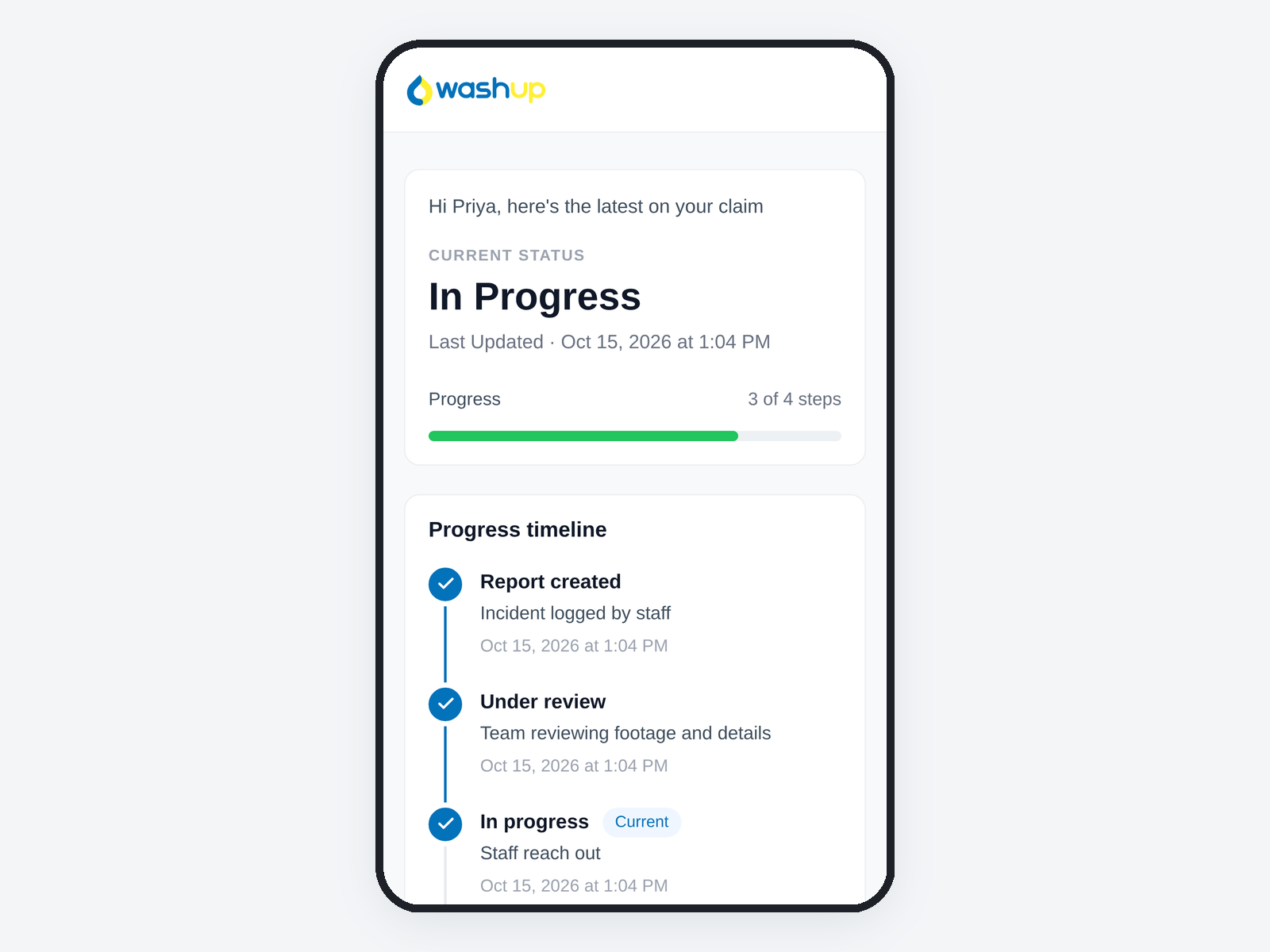
Every incident now has a tracking page the customer can open from any phone, with no login. It shows the claim’s current status and a progress timeline—Report created, Under review, In progress, Closed—with the date of each step, their vehicle and incident details, and buttons to call, email, or get directions to your wash.
To share it, open the incident and select Actions > Copy Tracking Link, or include it in the signed disclosure email. Fields your company hides in the Form Editor don’t appear on the tracking page.
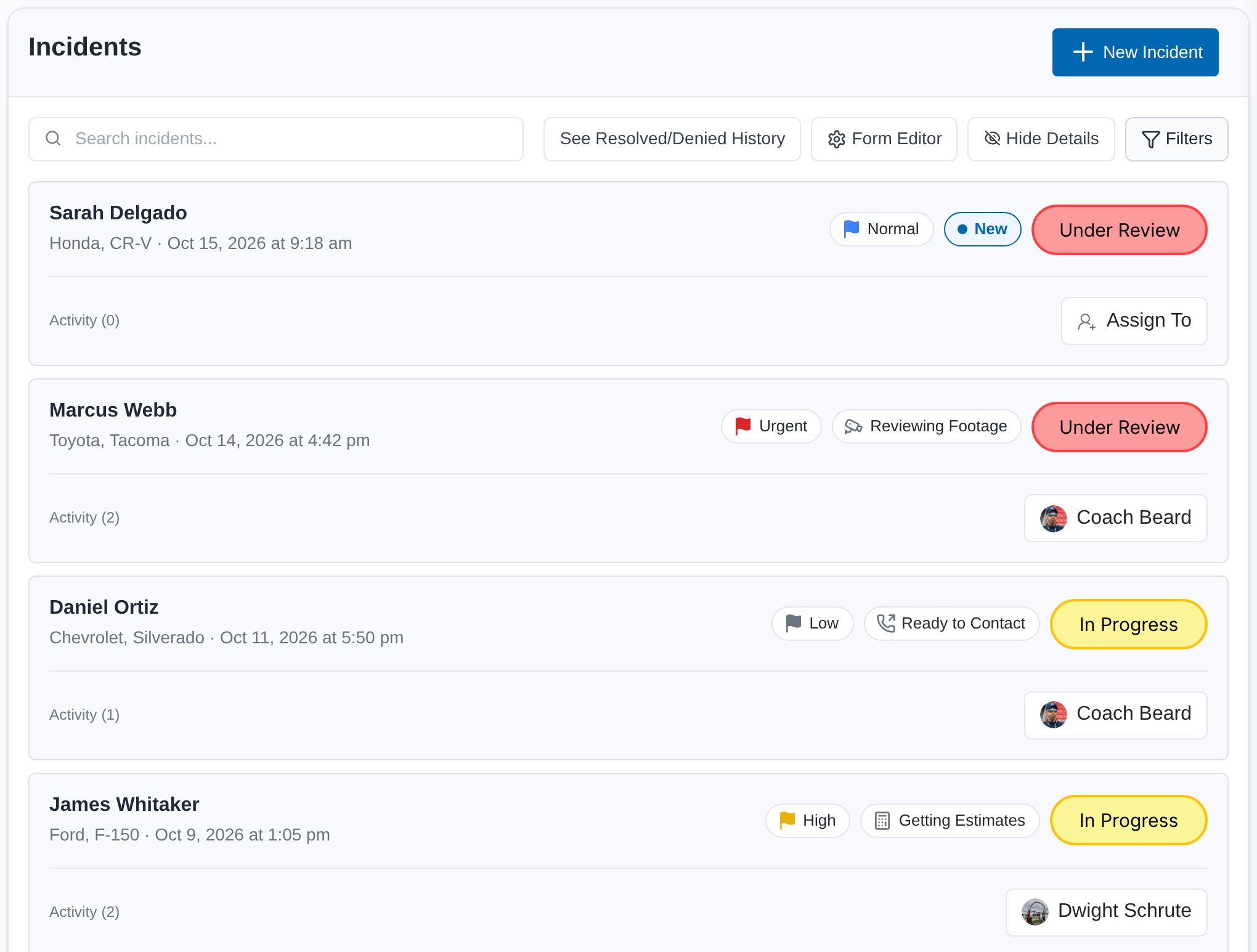
Every open incident can now have a Priority—Urgent, High, Normal, or Low—and a Progress step that shows where it stands inside its status:
The incident list shows open claims first, with each card’s priority, progress, and activity count. Assign a claim right from its card. Select Filters & Sort to filter by Status, Priority, Progress, Assigned To, or Reported By, and sort by newest, oldest, or customer name. Select See Resolved/Denied History to review closed claims, grouped by the day they were closed.
Priority and Progress lock once an incident is Resolved or Denied.
Each incident now has two tabs: Details and Timeline & Activity. The timeline records every change, note, and status update with who made it and when, newest first, so the history of a claim is in one place months later.
Add notes with photos, videos, and files, and @mention a teammate to email them. You can edit or delete your own notes.
Actions holds everything else:
Admins can also select Delete Incident, which asks you to type the customer’s name to confirm.
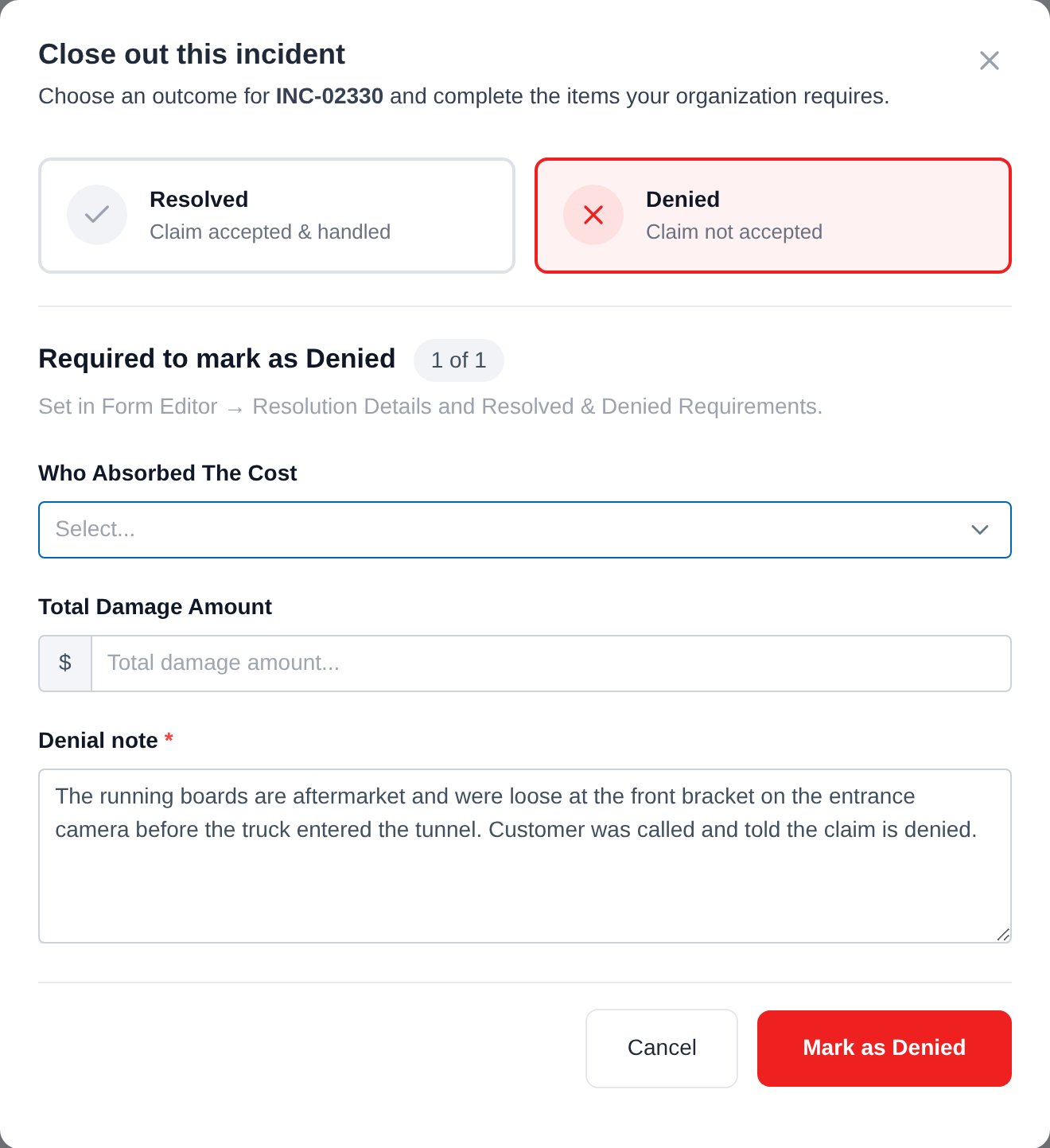
Admins close an incident with Resolved / Denied. Choose the outcome, and WashUp shows what’s required to close it:
Only the note is required by default; Admins decide which other items are required in the Form Editor. Resolution Details also records Who Absorbed The Cost—Car Wash, Insurance, Customer, or Split—and the Total Damage Amount. A closed incident stays closed.
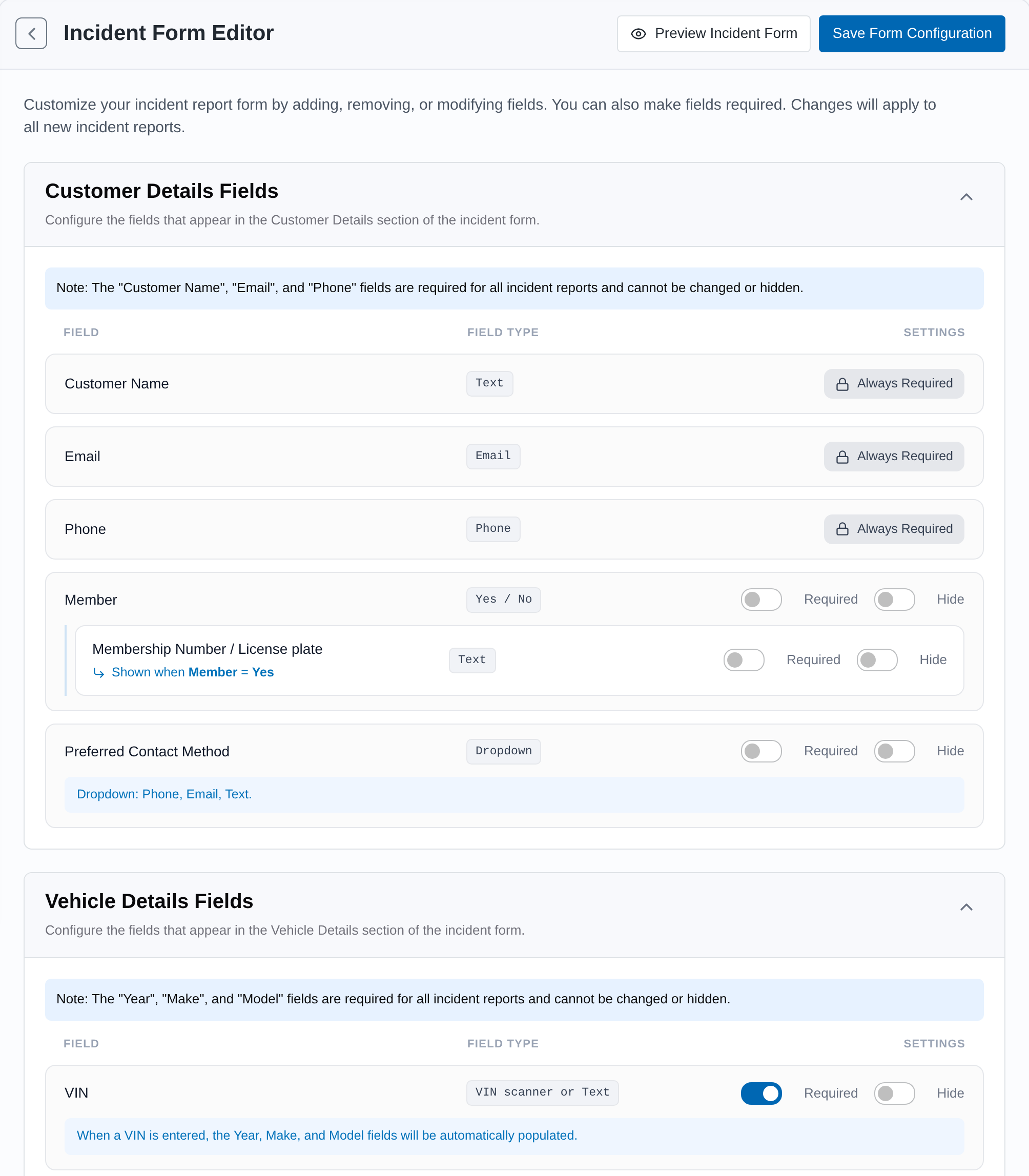
Admins can open Form Editor from the Incidents page to set up the report for the whole company:
Use Preview to see the form before saving. Changes apply to incidents created after you save; existing reports keep the settings they were created with. Customer name and contact details, vehicle year, make, and model, and the incident date and time are always required.
Open Incidents in WashUp to explore the update.
Have questions? Reach out at contact@washup.solutions.