
Help Center
We’ve rolled out a major update to My Wash, giving you more control over your wash bays and areas, faster ways to build your equipment lists, and a clearer view of each piece of equipment. This update includes redesigned equipment pages, improved history and filters, document storage, easier duplication across locations, a refreshed CSV upload, and a guided photo walkthrough. The entire experience is mobile-friendly and tablet-friendly, so your team can use it wherever they’re working.
You can now rename, rearrange, and delete wash bays and areas directly in WashUp.
Use Edit Wash Bays/Areas to organize your tunnel, equipment room, vacuum area, self-serve bays, and other spaces. Match the names and order to how your team knows the wash, making it easier to find the right area.
When adding a bay or area, choose between two options:
For matching bays, you can bring over equipment, photos, equipment details, and attached inspections. Set up one bay, then reuse that information across similar bays and locations.
Manufacturer and model information can carry over, while serial numbers and install dates stay specific to each physical piece of equipment. Copied equipment is added to the destination’s existing list.

Each piece of equipment now has a cleaner detail page organized into four tabs: Overview, History, Connections, and Files & Docs.
Whether you’re checking a top brush, looking up a chemical pump, or reviewing maintenance on your RO machine, these sections make the information easier to find.

Overview
The Overview brings equipment details, a photo, and recent activity together in one place.
Quick actions let you report an issue or add notes and attachments directly from the equipment page. You can also move into the item’s history or see which inspections and services it’s connected to.
History
The History tab has been redesigned to make equipment activity easier to follow. Related updates are grouped together, with clearer dates and a more readable layout.
Search and improved filters help you find the records you need. You can also add notes and attachments directly to the equipment—recording an observation, documenting an adjustment, or leaving context for the next person working on it.
Connections
The Connections tab shows the inspections and services associated with each piece of equipment.
For attached inspections, see when the inspection last ran and the equipment’s result. For attached services, review scheduling information, including frequency, previous service timing, and the next due date when available.
Links take you directly to the related records so you can review the work in more detail.
Files & Docs
Keep equipment documents attached to the item they belong to. Files are organized into three categories:
Your team can find these documents while troubleshooting, preparing for maintenance, or looking up information on-site.
The updated Add Equipment form gives you a clear place to capture information about each item.
Start with the equipment name and wash bay or area, then add a recognizable photo. Additional fields let you record:

The Add Equipment menu now brings together three convenient ways to build out your wash: Setup Wizard, Duplicate from Another Bay, and CSV Upload.
Choose the approach that fits what you already have—an existing WashUp setup, a spreadsheet, or a new list you’re building from scratch.
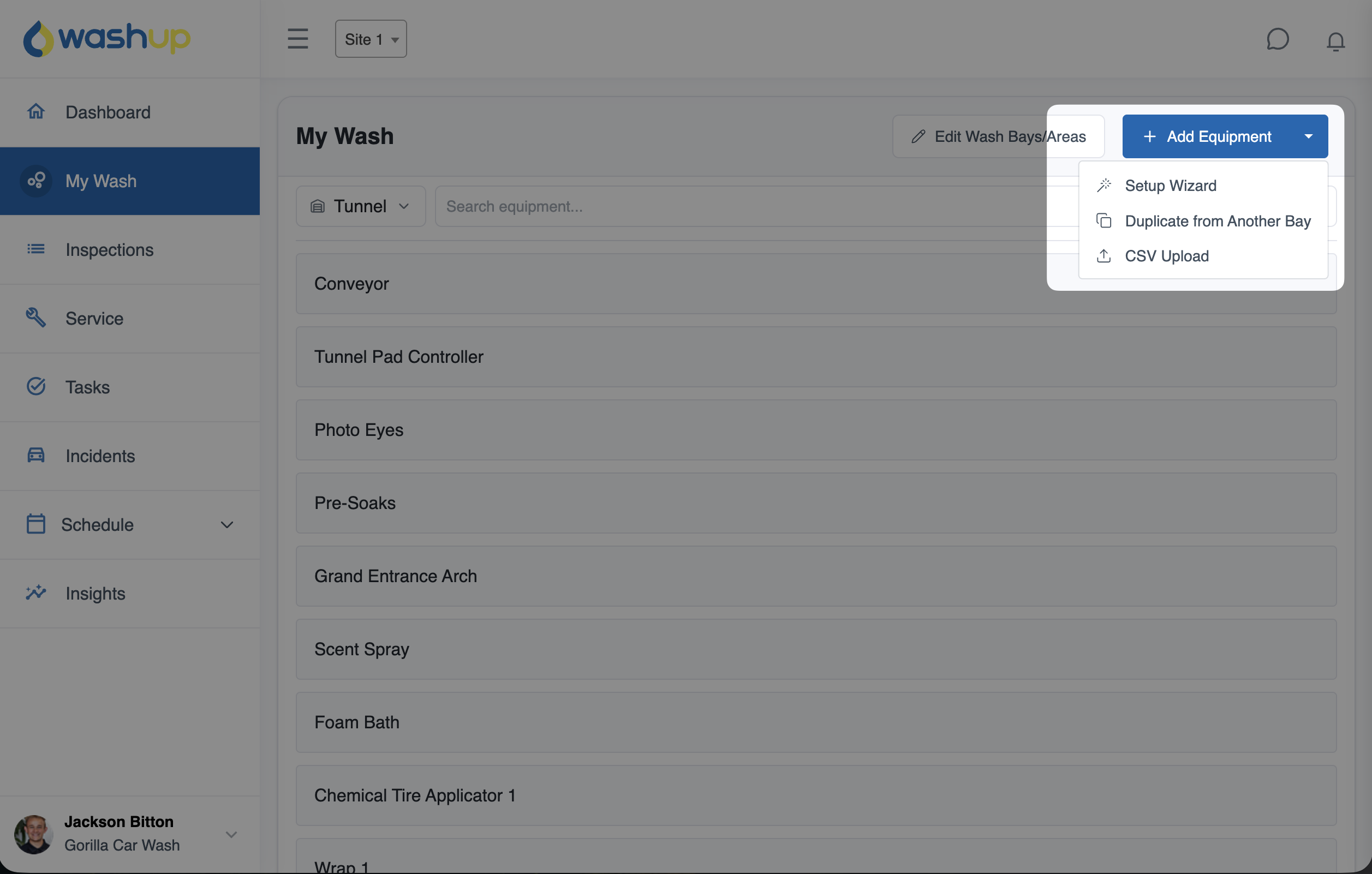
Equipment Setup Wizard
The Setup Wizard guides you through building an equipment list in four steps:
Review your selections before adding them and go back to make adjustments as needed. If an item isn’t included in the wizard’s list, you can add it afterward using Add Equipment.
Duplicate from Another Bay
Reuse an equipment setup you’ve already built. Choose the source bay, select your destinations, and choose the available information to copy, including photos and attached inspections.
This is especially useful for matching self-serve bays, similar equipment rooms, or locations with the same equipment. It reduces repeated data entry and helps keep your setup consistent.
Refreshed CSV Upload
CSV Upload has received a major refresh, making it easier to bring an existing equipment list into My Wash.
If your equipment is already listed in a spreadsheet, use the CSV upload flow to add it without entering each item individually. You can then add photos and fill in equipment details as needed.
The new guided photo walkthrough makes it easier to photograph equipment as you walk your wash.
Open the walkthrough for a bay or area to see how many items already have photos and how many still need them. Then work through the equipment one item at a time.
You can:
The walkthrough works especially well on a phone or tablet, so you can move through the site with your equipment list in hand. It reduces the back-and-forth of opening individual records and helps you build a recognizable photo reference for your team.

You now have more ways to keep and share equipment information outside WashUp.
Share information with someone working on your wash or keep a reference copy on hand.
When a piece of equipment is no longer in use, archive it to remove it from your active equipment list while keeping its history available.
Archived records show when the equipment was archived, who archived it, and the recorded reason. If the equipment returns to use, you can unarchive it.
Unarchiving returns the item to your equipment list, but doesn’t automatically restore its previous inspection connections or service schedules. Review and set those up again as needed.
The updated layouts, equipment pages, setup tools, and photo walkthrough work across phones, tablets, and desktops.
Organize your wash from your desk, check a manual in the equipment room, or add photos while walking the tunnel. Your equipment information stays accessible where your team needs it.
Open My Wash in WashUp to explore the update.
Have questions? Reach out at contact@washup.solutions.